Bank reconciliation is a critical financial control and should be carried out regularly — typically each time you receive a bank statement.
This process confirms that:
- The balance in Easy PC Accounts matches the bank’s records
- All income and expenditure has been recorded
- No transactions are missing
- Errors are identified promptly
Full guidance on the importance of bank reconciliation can be found in Governance and Accountability for Smaller Authorities in England. If you are unfamiliar with the process, we strongly recommend reviewing the relevant sections of that guide.
When to Reconcile
You should carry out a reconciliation:
- Monthly, when the bank statement is received
- After downloading a statement from online banking
- Before presenting financial reports to council
- At year end before completing AGAR
Bank statements may arrive:
- By post
- Via online banking download
You will need the statement’s:
- Closing balance
- Statement date
Before You Start
Before beginning the reconciliation process:
- Go to Administration.
- Review the list of transactions for the period covered by the bank statement.
- Check that all known receipts and payments have been entered.
Ensuring transactions are complete before reconciling will save time and make the process smoother.
Creating a New Reconciliation
- Go to Administration.
- Select Manage Bank Reconciliations.
This option is available under both Administration and Processes. - Click New Reconciliation.
- Select the relevant bank account.
You will then be prompted to:
- Enter the reconciliation date
- Enter the closing balance shown on the bank statement
Matching Transactions
The reconciliation screen will display a list of transactions.
For each transaction shown on your bank statement:
- Locate the matching entry in the system
- Tick the Cleared box
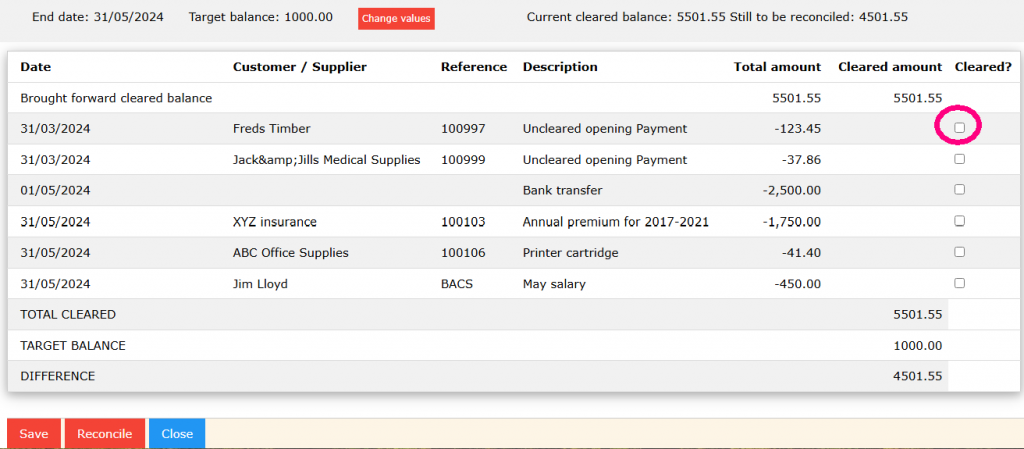
As you tick transactions:
- The system calculates the cleared balance
- Differences between the system and the bank statement become visible
Once all relevant items have been matched and the balance agrees with the bank statement, you can complete the reconciliation.
If There Is a Difference
If the reconciliation does not balance:
- Check for missing transactions
- Check for duplicated entries
- Check for data entry errors
- Confirm you are using the correct statement closing balance
If you cannot resolve the issue immediately:
- Save the reconciliation
- Return to it later once discrepancies have been investigated
Partial reconciliations can be saved safely.
Completing the Reconciliation
When the cleared balance matches the bank statement closing balance:
- Confirm the reconciliation
- Save the record
This creates a formal record of the reconciliation for that period.
Reconciliation Reports
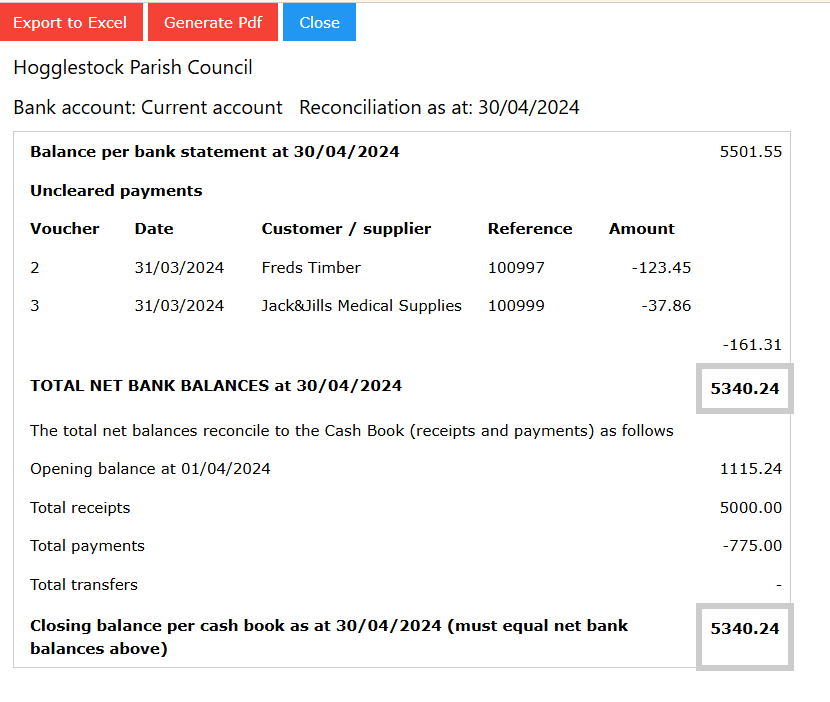
Easy PC Accounts generates two reports:
Summary Report
Shows:
- The latest reconciliation date
- The reconciled balance
- Any outstanding (uncleared) transactions
Detailed Report
Shows:
- All transactions marked as cleared
- Any outstanding transactions
- Full reconciliation details for audit purposes
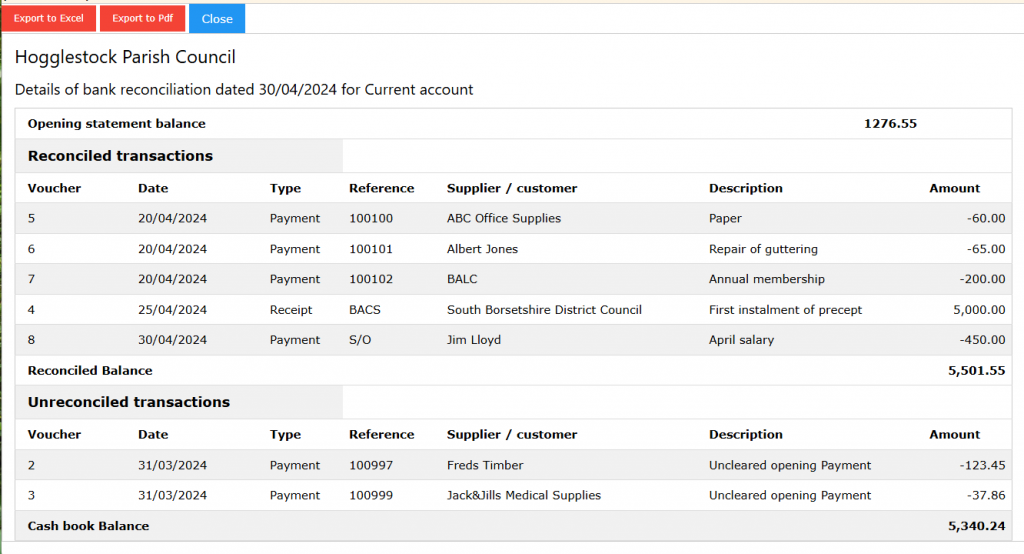
These reports provide evidence of financial control and may be required during internal or external audit.
Why This Matters
Regular bank reconciliation:
- Protects against fraud and error
- Ensures financial records are accurate
- Supports quarterly financial reporting
- Demonstrates sound financial management
- Provides audit evidence
Bank reconciliation is not just an administrative task — it is a fundamental governance control.