The budget is one of the most important financial documents presented to councillors.
One of the key requirements in the Annual Governance and Accountability Return (AGAR) Internal Audit report states:
D. The precept or rates requirement resulted from an adequate budgetary process; progress against the budget was regularly monitored; and reserves were appropriate.
Your budgeting process must therefore:
- Be clearly structured
- Support regular monitoring
- Allow comparison of actual spending against planned spending
- Demonstrate that reserves are appropriate
Easy PC Accounts is designed to support this requirement.
Regulatory Context
The NALC Model Financial Regulations state:
The RFO shall regularly provide the council with a statement of receipts and payments to date under each head of the budgets, comparing actual expenditure to the appropriate date against that planned as shown in the budget. These statements are to be prepared at least at the end of each financial quarter and shall show explanations of material variances. For this purpose “material” shall be in excess of £250 or 5% of the budget, whichever is the greater.
To meet this requirement effectively, your budget must be structured correctly from the outset.
Account Names and Account Codes
You may see references to both Account Codes and Account Names. In Easy PC Accounts, these terms are interchangeable.
Traditionally, accounting systems refer to “account codes.” However, we use the term Account Name throughout the system because it is clearer and easier to understand, particularly for councillors and clerks without a formal accounting background.
Each Account Name:
- Represents a specific income or expenditure heading
- Sits within an Account Group
- Has a budget attached to it
- Appears on budget reports
Using meaningful names instead of numeric codes makes reports more transparent and easier to follow at council meetings.
Profiled Budgeting Explained
Easy PC Accounts uses profiled budgeting, a method also used in accounting packages such as QuickBooks and Sage.
Profiled budgeting means:
- The annual budget is split into monthly segments
- Income and expenditure are allocated to the months when they are expected to occur
- Reports compare actual transactions against what should have happened by that point in the year
This approach provides:
- More accurate comparisons
- Clearer quarterly reporting
- Fewer unexplained variances
- Better financial oversight for councillors
Without profiling, a simple annual total can make spending appear over or under budget simply because of timing.
Before You Start: Budget Structure
Budget reports are driven by two main factors:
- The Account Names you create
- The budgets assigned to those Account Names
If Account Names are not structured clearly, your reports will not present information in a way that councillors can easily understand.
For this reason, budget planning should begin with reviewing your Account Groups and Account Names.
Step 1 – Create or Review Account Names
Each income and expenditure heading must have its own Account Name.
When creating or editing an Account Name, you can:
- Assign it to the correct Account Group
- Set whether it relates to income or expenditure
- Enter the annual budget amount
- Profile the budget across the financial year
Clear and logical Account Names make budget reports easier to read and understand.
Examples of expenditure Account Names:
- Staff Costs
- Grounds Maintenance
- Insurance
- Street Lighting
- Grants
Examples of income Account Names:
- Precept
- Allotment Rents
- Grants Received
- VAT Reclaim
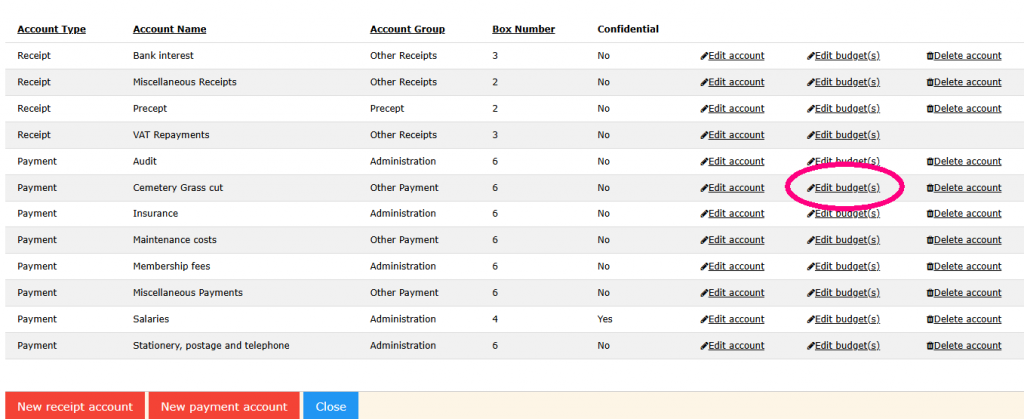
Step 2 – Enter the Annual Budget
Once Account Names are in place:
- Open the relevant Account Name.
- Enter the total annual budget amount.
- Save the changes.
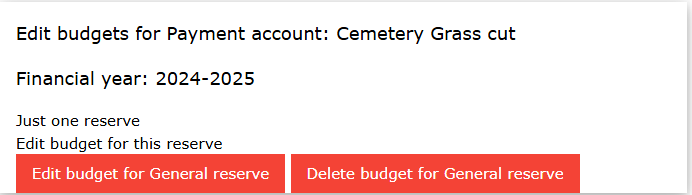
This establishes the total budget allocated for that heading.
Step 3 – Profile the Budget
After setting the annual amount, you should profile it across the months of the financial year.
Example of a spread budget.
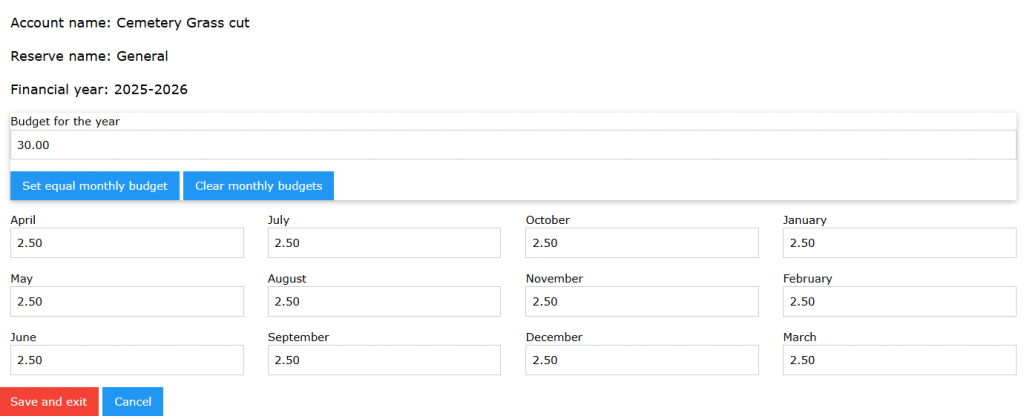
You can:
- Spread the amount evenly across 12 months
- Allocate larger amounts to specific months
- Set one-off payments in a single month
- Reflect seasonal income or expenditure
Examples:
- Insurance may be allocated to a single month
- Grounds maintenance may be spread between April and October
- Precept income may be split between April and September
Example of a single annual budgetary item.
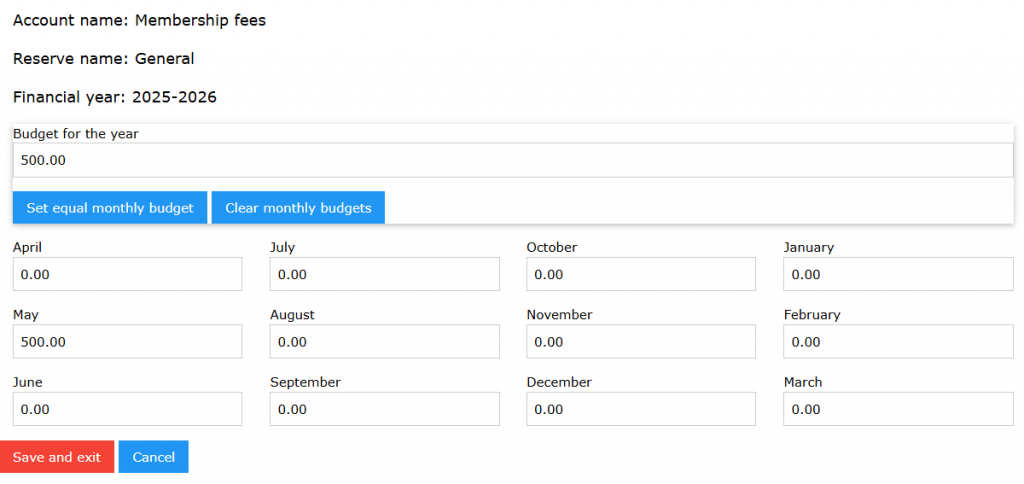
Profiling ensures that quarterly budget reports reflect expected activity rather than simply dividing by twelve.
Step 4 – Review Budget Reports
Once budgets are entered and profiled, you can produce budget reports showing:
- Annual budget
- Budget to date (based on profile)
- Actual receipts and payments
- Variance
- Percentage of budget used
You may find that using spreadsheet software allows you to highlight specific items.
These reports should be presented to council at least quarterly.
Material variances (over £250 or 5% of the budget, whichever is greater) should be explained to councillors.
Good Practice When Setting Budgets
When preparing your annual budget:
- Base figures on previous years’ actual spending
- Consider known increases such as contracts, utilities, and staffing
- Review reserves and earmarked funds
- Ensure income projections are realistic
- Agree the final budget formally at a council meeting
The precept requirement should clearly derive from this approved budget.
Why This Matters
A properly structured and profiled budget:
- Supports compliance with Financial Regulations
- Makes quarterly reporting straightforward
- Reduces confusion at meetings
- Demonstrates sound financial management
- Supports the AGAR internal audit process
Budget setup is not just data entry — it forms the foundation of your council’s financial governance.
If you would like further guidance on structuring account codes or reviewing your current budget setup, please refer to the related documentation pages or contact support.